


Playback & shortcuts
Loudness control, fades, keyboard shortcuts, and video preferences.
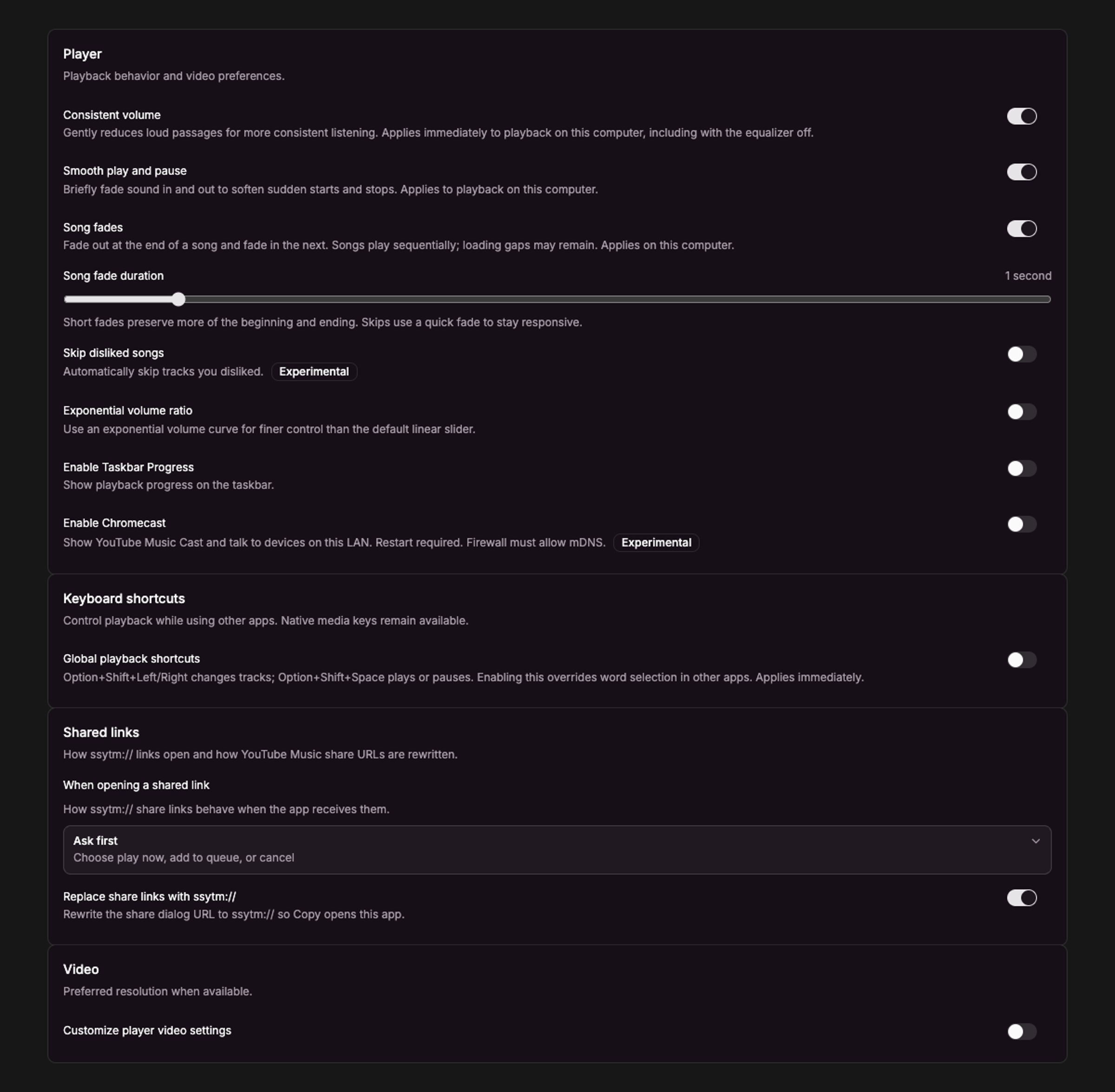
Current UI captured in an isolated session with sample data.
Open Settings → Player → General.
Sound and transitions
| Setting | Behavior |
|---|---|
| Consistent volume | Gently reduces loud passages for more consistent local playback; enabled by default. |
| Smooth play and pause | Briefly fades sound in and out to soften starts and stops; enabled by default. |
| Song fades | Fades out at a song’s end and into the next song; off by default. |
| Song fade duration | Choose 0.5–5 seconds when song fades are enabled. |
| Exponential volume ratio | Gives the volume slider finer control at low levels. |
Song fades play songs sequentially. They do not overlap two songs, and loading time can still leave a gap. Sound processing applies on this computer; do not assume a Cast device uses the same processing.
Keyboard shortcuts
Native media keys remain available. Enable Global playback shortcuts to control Sweet Spot while using other apps:
| Action | Windows | macOS |
|---|---|---|
| Previous track | Alt + Shift + Left | Option + Shift + Left |
| Next track | Alt + Shift + Right | Option + Shift + Right |
| Play / pause | Alt + Shift + Space | Option + Shift + Space |
Global shortcuts are disabled by default on macOS because the arrow combinations are also text-selection shortcuts. Changes apply immediately.
Other playback options
- Skip disliked songs is experimental and skips a disliked track when the track changes.
- Choose video resolution lets you request a preferred video resolution. Availability depends on the track and YouTube Music.
- Enable Taskbar Progress shows playback progress where the platform supports it.
- Enable Chromecast is experimental. Restart after enabling it, and allow local-network discovery through your firewall. Devices must be reachable on your network.
Shared-link preferences are in the same page; see Shared links.
Watch music videos
For tracks with an available music video, choose Video in the player to watch without returning to the full YouTube Music window. Choose Artwork to return to the cover view. The video panel is available in the player skins and can be shown or hidden in the skin’s panel settings.
Set your preferred resolution under Settings → Playback → Video → Choose video resolution. Available video quality depends on the track and YouTube Music. Audio-only tracks continue to show artwork.